01Where Internet Enters
Internet Box (ONT or Modem) [ISP-Supplied]
Converts fibre light pulses (ONT) or cable/DSL signals (Modem) into Ethernet. Check whether its Ethernet port is 1 Gigabit or 2.5 Gigabit so it does not cap your internet speed.
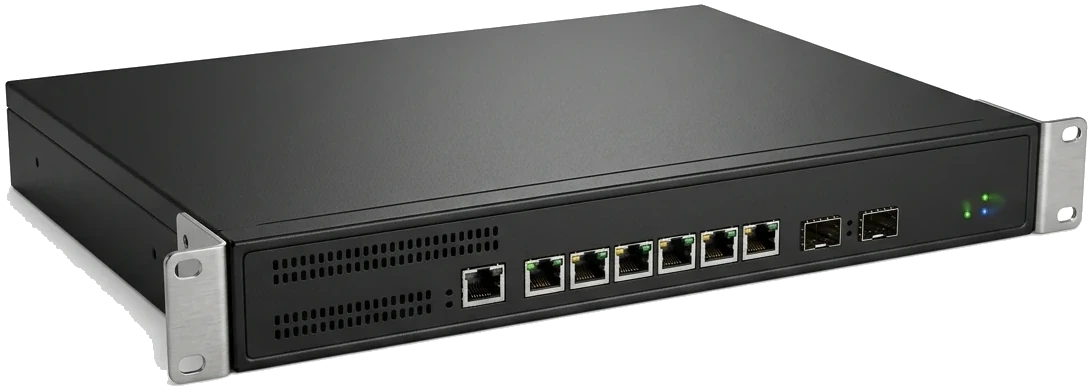
Two devices sit at the doorway between your home lab and the outside internet: your internet company’s connection box (modem or fibre terminal) and your router and firewall.
First, the Optical Network Terminal (ONT: for fibre internet) or Modem (for cable or phone-line internet) converts your Internet Service Provider’s (ISP’s) outside signal into standard Ethernet network cabling. It is usually supplied by your internet company.
Next, your Router and Firewall act as the gateway and security guard for your entire home. The router shares your single internet connection across every device using Network Address Translation (NAT), automatically hands out local addresses using Dynamic Host Configuration Protocol (DHCP), helps look up website names using Domain Name System (DNS), and directs traffic between separate private networks. Its Firewall checks every connection and blocks unwanted outsiders by rule.
1) Ask if your ISP box has "Bridge Mode" (or can be replaced). Leaving two routers running back-to-back creates "Double NAT", which breaks remote access and games. 2) Ask if you get a real public IPv4 address or Carrier-Grade NAT (CGNAT, where many customers share one address). Under CGNAT you cannot accept direct incoming connections, so remote access must use an outbound mesh VPN.
Converts fibre light pulses (ONT) or cable/DSL signals (Modem) into Ethernet. Check whether its Ethernet port is 1 Gigabit or 2.5 Gigabit so it does not cap your internet speed.
The single "outside" port that plugs directly into your internet company’s ONT or modem.
The "inside" port that plugs into your managed network switch to serve your entire home and lab.
Must be fast enough to inspect traffic at your full internet speed. Support for AES-NI encryption instructions makes Virtual Private Network (VPN) connections much faster.
The physical network chips behind each port. Intel network chips are widely favoured in open-source firewall software for rock-solid driver stability.
A small, quiet Intel or AMD computer with two or more 2.5 Gigabit network ports running free open-source firewall software such as OPNsense or pfSense. Gives total control over private network lanes (VLANs), security rules and encrypted remote access (VPN).
An all-in-one router, firewall and management controller from a single vendor. Great when you want a clean, unified dashboard with less manual setup while still supporting separate networks and VPNs.
Running firewall software inside a virtual machine on your main server saves a separate box, but has one big catch: whenever you reboot or update your server, your entire home loses internet.
Basic Wi-Fi routers handed out by internet companies rarely support separate private networks (VLANs), custom firewall rules or fast encrypted VPNs.
| Type | What It Is | Best When |
|---|---|---|
| Dedicated Firewall Box / Mini PC | Multi-port mini computer running OPNsense, pfSense or similar | You want full control, strong VPNs, VLANs and hands-on learning |
| Integrated Gateway | Router, firewall and network dashboard from one maker | You want simplicity and a polished visual interface |
| Virtualised Firewall [CONDITIONAL] | Firewall running as a virtual machine on your server | You accept that rebooting the server temporarily cuts home internet |
| ISP Combo Router Only | Basic consumer router supplied by the internet company | Not recommended for a home lab: put it in Bridge Mode instead |
Choose a router with at least two 2.5 Gigabit Ethernet ports (one for internet in, one for your local switch), plus a 10 Gigabit SFP+ fibre/cable slot if your lab switch uses 10G uplinks.
Check that the network chips inside the box are well supported by your chosen firewall software. Intel network chipsets are known for reliable drivers.
Plain internet routing is easy, but encrypted VPNs and traffic inspection take more processor power. Look for a modern low-power CPU with AES-NI encryption support, 8 GB of RAM and a small SSD.
Fanless metal-cased firewall boxes are completely silent, which is great for home rooms, just make sure air can flow around their cooling fins.
An integrated gateway (router + firewall) does not need a second router behind it. Put your internet company’s combo box into Bridge Mode and turn off its built-in Wi-Fi so only one router controls your network.
Confirm your ISP port speed (1G vs 2.5G+), whether Bridge Mode is available, and whether you have a public IP or CGNAT.
Make sure both the router and switch support IEEE 802.1Q VLAN tagging so they can carry multiple separated networks over one cable.
Breaks remote VPN connections, causes online gaming issues and makes troubleshooting confusing.
Devices accidentally join the wrong network and bypass your firewall rules completely.
A simple server crash or update knocks the whole household offline until you fix the server.
Weakens the main security barrier protecting every device in your home.